Best Project Management Tools in 2026 (Free + Paid)
Best Project Management Tools in 2026 (Free + Paid)
Every project manager has been there. The kickoff meeting goes perfectly. Everyone is aligned, deadlines are set, and the mood is optimistic. Then, three weeks in, two team members are using email threads, the developer is tracking tasks in a personal Notion page, and the client is asking for updates on WhatsApp.
The right project management tool does not just organize your tasks. It becomes the single source of truth that prevents exactly this kind of chaos. In 2026, the market is overflowing with options — and choosing the wrong one wastes money, creates adoption friction, and slows your team down.
This guide cuts through the noise. We have analyzed the top project management tools available today, organized by use case, so you can find the one that fits your team, methodology, and budget — without spending a week on YouTube reviews.
How to Use This Guide
This guide covers tools across five categories: Agile teams, traditional/waterfall PMs, free options, small teams, and AI-powered tools. Jump to the section most relevant to you, or read end-to-end for the full comparison.
Table of Contents
- How We Evaluated These Tools (Our Criteria)
- Best Project Management Tools for Agile Teams
- Best Tools for Traditional / Waterfall Project Managers
- Best Free Project Management Tools
- Best Tools for Small Teams and Startups
- AI-Powered Project Management Tools to Watch in 2026
- Full Comparison Table: All 15 Tools Side by Side
- How to Choose the Right Tool for Your Team
1. How We Evaluated These Tools
We did not pick tools based on marketing budgets or popularity contests. Every tool in this list was evaluated against five practical criteria:
- Ease of adoption — how quickly can a new team member become productive?
- Methodology fit — does it support Agile, Waterfall, or hybrid workflows natively?
- Pricing transparency — are the important features locked behind expensive tiers?
- Integration depth — does it connect with the tools your team already uses?
- Scalability — will it still work when your team doubles in size?
With those filters applied, here is what we found.
2. Best Project Management Tools for Agile Teams
Agile teams need tools that support sprints, backlogs, story points, and fast iteration cycles. The following three tools are the industry standard for a reason — but each has a distinct personality.
Jira — The Agile Powerhouse
Jira — the industry standard for software teams
Best for: Software development teams, DevOps, large-scale Agile projects
Pricing: Free up to 10 users. Standard: $8.15/user/month. Premium: $16/user/month.
Pros:
- Unmatched depth for Scrum and Kanban — backlog grooming, sprint planning, velocity charts, and burndown reports are all native features.
- Deep integrations with the Atlassian ecosystem (Confluence, Bitbucket) and virtually every CI/CD pipeline tool.
- Highly customizable workflows — you can build exactly the process your team follows, not adapt to the tool’s defaults.
- Ideal if you are preparing for or currently working in environments where PMP or SAFe frameworks are used.
Watch out for:
- Steep learning curve. Non-technical team members often find Jira overwhelming at first.
- Can become slow and cluttered on large projects without a dedicated admin to maintain hygiene.
- The free plan is genuinely good; however, advanced reporting quickly pushes you to paid tiers.
ClickUp — The All-in-One Challenger
ClickUp — one app to replace them all
Best for: Teams wanting to consolidate tools — from tasks to docs to goals in one platform
Pricing: Free forever (generous). Unlimited: $7/user/month. Business: $12/user/month.
Pros:
- Incredible flexibility — supports Scrum, Kanban, Gantt, Mind Map, and List views simultaneously. Switch between views without changing the underlying data.
- Built-in Docs, Whiteboards, Goals, and Time Tracking mean fewer third-party integrations needed.
- The free plan is the most generous in the market — unlimited tasks, unlimited members, and 100MB storage.
- ClickUp AI (available on paid plans) can generate task summaries, suggest subtasks, and write project briefs.
Watch out for:
- The sheer number of features can be paralyzing when you first set it up. It requires a deliberate configuration phase.
- The mobile app lags behind the desktop experience — not ideal for field-based project managers.
- Occasional performance issues on very large workspaces have been reported by enterprise users.
Linear — The Focused Favourite for Product Teams
Linear — speed and simplicity for modern product teams
Best for: Product teams and startups that value speed and minimalism over feature bloat
Pricing: Free up to 250 issues. Basic: $8/user/month. Plus: $14/user/month.
Pros:
- Blazing fast interface — keyboard shortcuts and instant search make it the fastest PM tool to actually use day-to-day.
- Beautiful, clean UI that engineers genuinely enjoy using (adoption is rarely a fight).
- Excellent GitHub and GitLab integration — issues link directly to commits and pull requests.
- Roadmap and cycle (sprint) management is simple, opinionated, and works out of the box.
Watch out for:
- Far less flexible than Jira or ClickUp — if your workflow is non-standard, you will feel constrained.
- Not suitable for non-software project types (marketing campaigns, construction, etc.).
- Limited reporting compared to enterprise alternatives.
3. Best Tools for Traditional / Waterfall Project Managers
Not every project runs in two-week sprints. Infrastructure, construction, pharmaceutical, and government projects often require sequential planning, formal resource allocation, and Gantt-based timelines. These tools are built for exactly that.
Microsoft Project — The Enterprise Standard
Microsoft Project — the go-to for complex, enterprise-scale project planning
Best for: Large enterprises, government projects, PMP-certified PMs managing resource-heavy projects
Pricing: Project Plan 1: $10/user/month. Project Plan 3: $30/user/month. Project Plan 5: $55/user/month.
Pros:
- The most powerful Gantt chart and resource management engine available — period. Dependency mapping, critical path analysis, and resource leveling are all native.
- Deep integration with the Microsoft 365 ecosystem (Teams, SharePoint, Power BI).
- If you are studying for your PMP, Microsoft Project directly mirrors the tools and terminology used in PMBOK — making it the best learning companion.
- Baseline tracking lets you compare planned vs. actual progress with precision, which is essential for formal project reporting.
Watch out for:
- The steepest learning curve on this list. New users often need structured training before they are productive.
- Expensive for small teams — pricing is designed for enterprise budgets.
- Poor real-time collaboration compared to cloud-native tools. It was not designed for distributed teams first.
Smartsheet — Spreadsheet Power, PM Depth
Smartsheet — if Excel had a project management degree
Best for: Teams comfortable with spreadsheets who need more structure and automation
Pricing: Pro: $9/user/month. Business: $19/user/month. Enterprise: Custom.
Pros:
- Spreadsheet-style interface dramatically reduces the learning curve for teams already living in Excel.
- Excellent automation — trigger email alerts, status updates, and row moves based on conditions.
- Strong reporting dashboards that pull data from multiple sheets into a single executive view.
- Handles both Agile and Waterfall workflows — genuinely hybrid-friendly.
Watch out for:
- Can feel like a slightly glorified spreadsheet for teams that need deep Agile sprint management.
- The per-user pricing adds up quickly for larger teams.
Wrike — The Collaborative Waterfall Tool
Wrike — structured collaboration for marketing and operations teams
Best for: Marketing agencies, operations teams, and cross-functional project management
Pricing: Free (limited). Team: $9.80/user/month. Business: $24.80/user/month.
Pros:
- Excellent for teams that need both structure (Gantt, timelines) and collaboration (proofing, comments, approvals).
- Built-in request forms are a huge time-saver for teams that manage incoming work from multiple stakeholders.
- Strong workload management view — see at a glance who is over-allocated before it becomes a problem.
Watch out for:
- The interface is not as intuitive as ClickUp or Asana — new users need onboarding time.
- Some core features (like time tracking and custom dashboards) are locked behind higher pricing tiers.
4. Best Free Project Management Tools
Free does not have to mean limited. These three tools are genuinely powerful at no cost — and widely used by professional project managers, not just students.
Trello — Visual Simplicity at Its Best
Trello — the quickest way to get a team organized
Best for: Small teams, personal task management, simple Kanban-style workflows
Pricing: Free (unlimited cards, 10 boards per workspace). Standard: $5/user/month. Premium: $10/user/month.
Pros:
- Zero learning curve — if you understand sticky notes, you understand Trello. Teams are usually productive within 30 minutes.
- The free plan is genuinely useful for small teams — unlimited cards, checklists, and due dates.
- ‘Power-Ups’ allow integration with Slack, Google Drive, Jira, and dozens of other tools even on the free plan.
Watch out for:
- Does not scale well for complex projects — no native Gantt view, no dependency tracking, no resource management on the free plan.
- Not suitable for teams that need formal reporting or executive dashboards.
Asana (Free Plan) — Structure Without the Price Tag
Asana — organized, clean, and surprisingly powerful for free
Best for: Teams of up to 15 people that need task management with clear ownership
Pricing: Free up to 15 users. Starter: $13.49/user/month. Advanced: $30.49/user/month.
Pros:
- The free plan includes unlimited tasks, projects, and messages — enough for a full team to operate professionally.
- Multiple views (List, Board, Calendar) available even on the free tier.
- Clean, approachable interface with excellent mobile apps — great for teams with remote members.
Watch out for:
- Timeline (Gantt) view and advanced reporting are paid-only features.
- No native time tracking — you will need a third-party integration.
Notion — The Flexible Workspace
Notion — more than a PM tool — a complete team knowledge base
Best for: Teams that want to combine project management, documentation, and wikis in one place
Pricing: Free (unlimited blocks for individuals). Plus: $10/user/month. Business: $15/user/month.
Pros:
- Unmatched flexibility — build exactly the workspace your team needs using databases, kanban boards, calendars, and linked pages.
- Free plan is excellent for individual use and small teams.
- Notion AI (paid add-on) can summarize meeting notes, generate project plans, and draft status updates in seconds.
Watch out for:
- Not a purpose-built PM tool — you will spend time building your system before you can use it.
- No native Gantt or critical path view. For complex project planning, you will need a secondary tool.
- Can become disorganized quickly without a clear information architecture strategy.
5. Best Tools for Small Teams and Startups
Small teams have specific needs: low overhead, quick onboarding, and pricing that makes sense before you have 50 employees. These tools are built with that reality in mind.
Monday.com — The Visual Team OS
Monday.com — highly visual, highly customizable team management
Best for: Non-technical teams, operations, sales, and marketing project management
Pricing: Free up to 2 seats. Basic: $9/seat/month. Standard: $12/seat/month. Pro: $19/seat/month.
Pros:
- Exceptionally visual — color-coded status columns, progress bars, and workload views make project status obvious at a glance without reading a single line of text.
- No-code automations allow small teams to build sophisticated workflows without an IT department.
- Wide template library — you can launch a functional project board in under five minutes.
Watch out for:
- The minimum paid plan is 3 seats — slightly awkward for solo PMs or two-person teams.
- Can get expensive as your team grows into higher tiers.
Basecamp — Radical Simplicity for Remote Teams
Basecamp — calm, focused collaboration without the noise
Best for: Remote-first small teams that are drowning in notifications from other tools
Pricing: Basecamp: $15/user/month. Basecamp Pro Unlimited: $299/month flat (unlimited users).
Pros:
- Flat-rate pricing makes it extremely cost-effective for larger small teams — unlimited users for $299/month is a genuine bargain.
- Deliberately simple — To-dos, Message Boards, Docs, Schedules, and Check-ins. Nothing more, nothing less.
- Campfire (built-in chat) and Hill Charts (progress tracking) are uniquely useful features you will not find elsewhere.
Watch out for:
- The simplicity is also a limitation — no Gantt view, no time tracking, no resource management.
- Not suitable for teams that need formal project reporting or client billing integration.
6. AI-Powered Project Management Tools to Watch in 2026
AI has moved from a buzzword feature to a genuinely useful capability in project management software. Here are the tools where AI is creating real productivity gains — not just a chatbot sidebar.
Motion — AI That Builds Your Schedule For You
Motion — your AI-powered daily planner and project scheduler
Best for: Individual PMs and small teams who struggle with prioritizing tasks across multiple projects
Pricing: Individual: $19/month. Team: $12/user/month (billed annually).
Pros:
- Motion’s AI automatically schedules your tasks into your calendar based on deadlines, priorities, and available time. When a new task comes in, it reprioritizes everything automatically.
- Genuinely solves the hardest part of project management: deciding what to work on right now.
- Works best for knowledge workers juggling many projects simultaneously.
Watch out for:
- Not designed for team collaboration at scale — best for individual PM workflows.
- The AI scheduling can feel intrusive if you prefer to manage your own calendar manually.
ClickUp AI — AI Inside Your Existing Workflow
ClickUp AI — AI that lives where your work already is
Best for: ClickUp users who want to automate repetitive writing and summarization tasks
Pricing: Add-on: $7/member/month on top of any ClickUp plan.
Pros:
- Generate task descriptions, project briefs, meeting agendas, and status update emails directly from your project data.
- Summarize long comment threads into a three-line brief — a massive time-saver on busy projects.
- AI-generated subtask suggestions help PMs who are delegating tasks to junior team members.
Watch out for:
- Still maturing — the AI output requires human review before it is client-ready.
- Only useful if you are already using ClickUp. Not a standalone product.
7. Full Comparison Table: All 15 Tools at a Glance
Use this table to quickly compare tools across the dimensions that matter most to your decision.
| Tool | Best For | Free Plan? | Starting Price | Agile? | Gantt? | AI Features? |
| Jira | Software/Dev teams | Yes (10 users) | $8.15/user/mo | Native | Basic | Yes |
| ClickUp | All-in-one teams | Yes (generous) | $7/user/mo | Native | Yes | Yes |
| Linear | Product teams | Yes (250 issues) | $8/user/mo | Native | No | No |
| MS Project | Enterprise/waterfall | No | $10/user/mo | Hybrid | Best-in-class | No |
| Smartsheet | Spreadsheet users | No | $9/user/mo | Hybrid | Yes | Limited |
| Wrike | Marketing/operations | Yes (limited) | $9.80/user/mo | Hybrid | Yes | Limited |
| Trello | Simple Kanban | Yes (10 boards) | $5/user/mo | Kanban | No | No |
| Asana | Teams up to 15 | Yes (15 users) | $13.49/user/mo | Yes | Paid | Limited |
| Notion | Docs + PM combined | Yes (individual) | $10/user/mo | Custom | No | Add-on |
| Monday.com | Visual/non-technical | Yes (2 seats) | $9/seat/mo | Yes | Paid | Limited |
| Basecamp | Remote teams | No | $15/user/mo | No | No | No |
| Motion | Individual PMs | No | $19/month | No | No | Core feature |
| ClickUp AI | ClickUp users | Add-on | $7/member/mo | Yes | Yes | Core feature |
8. How to Choose the Right Tool for Your Team
The best project management tool is not the one with the most features — it is the one your team will actually use consistently. Here is a simple decision framework to shortcut the analysis:
Step 1: Identify Your Project Methodology
- Running Scrum sprints with a development team? → Start with Jira or Linear.
- Managing sequential deliverables with formal milestones? → Start with MS Project or Smartsheet.
- Not sure yet, or working hybrid? → ClickUp gives you the most flexibility.
Step 2: Know Your Team Size
- Solo or 1–2 people → Notion (free) or Motion (AI scheduling).
- 3–15 people → Asana free, Trello free, or Monday.com Starter.
- 15–100 people → ClickUp Business, Jira Standard, or Wrike Business.
- 100+ people → Microsoft Project, Jira Premium, or Smartsheet Business.
Step 3: Set Your Budget Per User
- ₹0 → Trello, Asana, or ClickUp free plans are all solid starting points.
- Under ₹700/user/month → ClickUp Unlimited ($7) or Jira Standard ($8.15).
- ₹700–₹2,000/user/month → MS Project, Asana Advanced, or Wrike Business.
Step 4: Run a Two-Week Pilot
Do not commit to an annual plan without a pilot. Pick your top two tools, run them both with a real project for two weeks, and ask your team one question at the end: ‘Would you use this without being told to?’ The answer tells you everything.
The Bottom Line
Project management tools are multipliers — they amplify your existing skills, not replace them. The right tool makes a good PM faster. The wrong one creates busywork.
Here is the short version of everything above:
- Agile software team? → Start with Jira or ClickUp.
- Waterfall or enterprise? → Microsoft Project or Smartsheet.
- Free and getting started? → Asana or Trello.
- Remote small team? → Monday.com or Basecamp.
- Want AI to help manage your day? → Motion.
Tools alone, however, will not make you a better project manager. The frameworks, decision-making skills, and stakeholder communication strategies that separate good PMs from great ones come from structured learning and real-world practice.
Keep advancing in your PMP journey — explore our other in-depth guides
- 2026 PMP Exam Changes: The “Practicum” Revolution & Why 4 Hours Changes Everything
- The 2026 PMP Exam Shift: How to Master the “Business Environment” Surge (8% to 26%)
- The 5 Scrum Events Explained: Purpose, Attendees, and Effective Execution
- Why PMP Aspirants Fail? – And How to Avoid Them
- Why You Should Track Your Errors — and How to Do It Right
Your first project is calling—will you answer? Join the ShriLearning Community Connect with fellow PMP aspirants and expert instructors. Crete your study plan for free from ShriLearning study-plan-generator.
FAQs
More for you
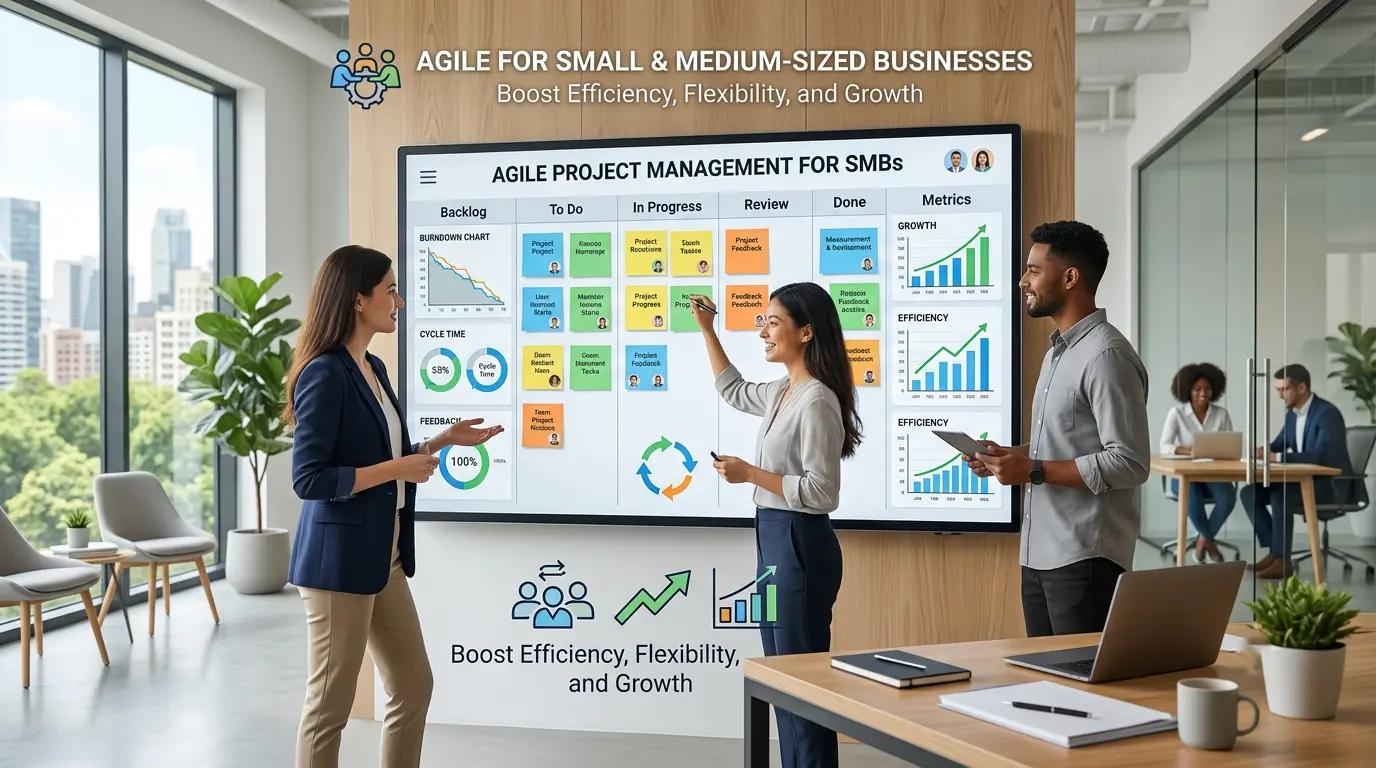
Benefits of Agile Project Management for Small and Medium-Sized Businesses
saketpratapsinghdm2026-09-28T10:12:30+05:30September 28th, 2026|

Work Breakdown Structure (WBS): The Complete PMP Guide, With a Worked Example
saketpratapsinghdm2026-09-21T16:48:15+05:30September 21st, 2026|
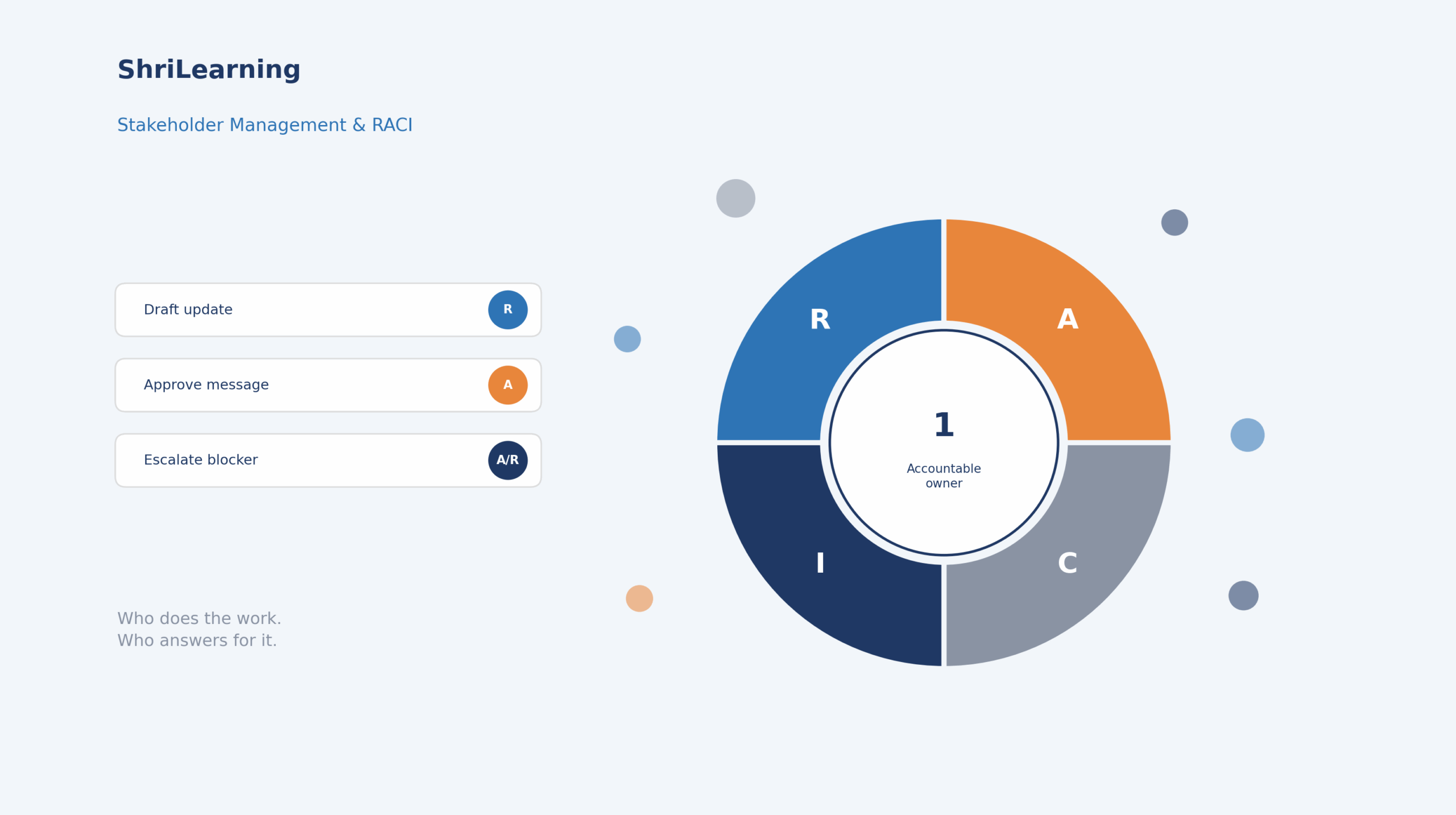
Stakeholder Management and RACI: The Complete PMP Guide (With a Worked Example)
saketpratapsinghdm2026-09-21T15:07:42+05:30September 21st, 2026|
How to Write a Problem Statement (With a PMP-Ready Template and Examples)
saketpratapsinghdm2026-09-21T14:42:27+05:30September 21st, 2026|

Earned Value Management: How to Actually Read CPI and SPI (Not Just Calculate Them)
saketpratapsinghdm2026-09-17T15:32:44+05:30September 17th, 2026|

Agile Practice Guide – Second Edition: What Changed, and What It Means for Your PMI-ACP Prep
saketpratapsinghdm2026-09-17T14:45:53+05:30September 17th, 2026|

Why the PMP People Domain Dropped to 33% (And How to Master It in 2026)
saketpratapsinghdm2026-08-27T21:18:31+05:30August 27th, 2026|

CSM Certification Guide India (2026): Cost, Eligibility, Salary & Exam Steps
saketpratapsinghdm2026-09-17T15:37:52+05:30August 21st, 2026|